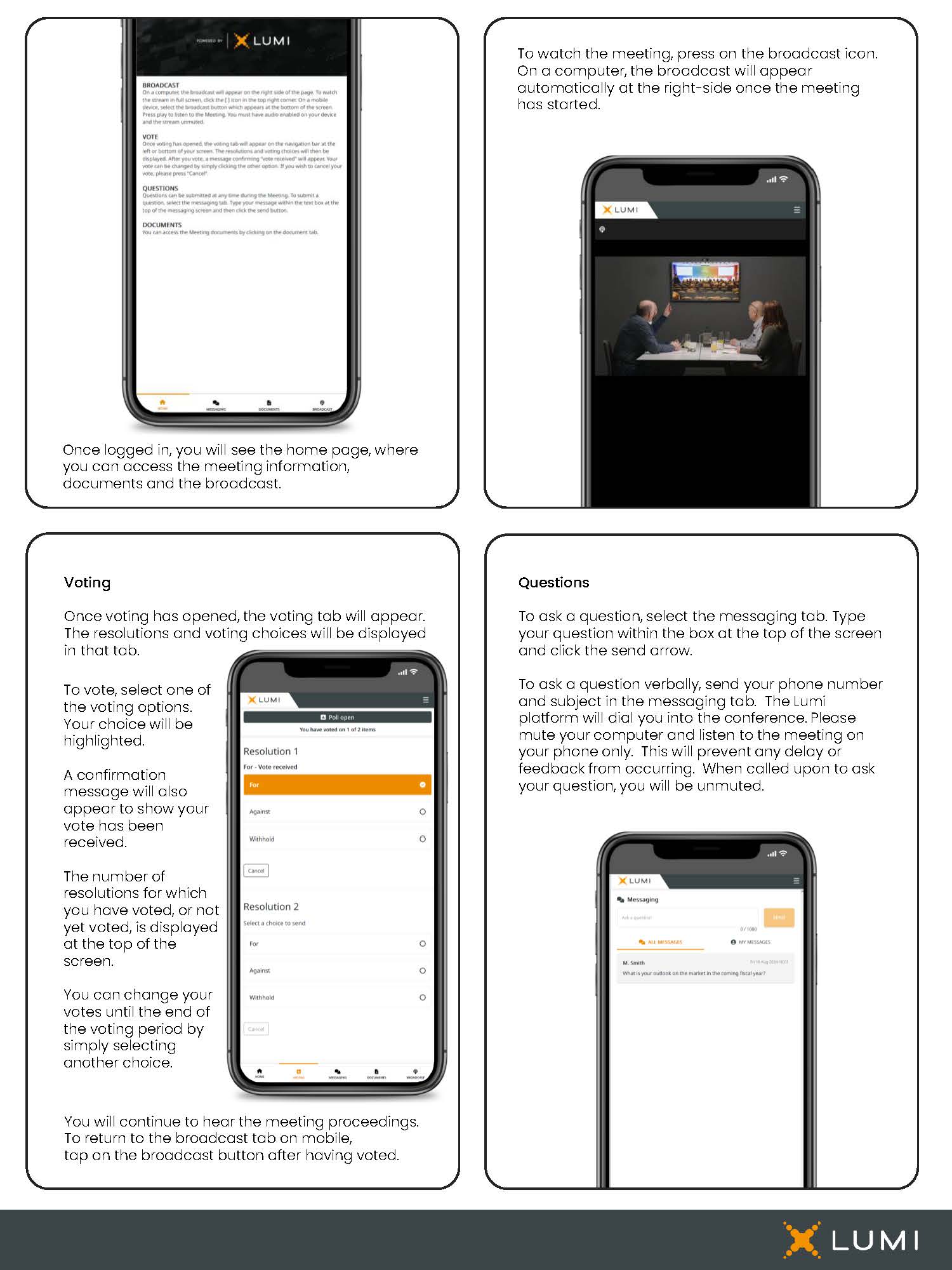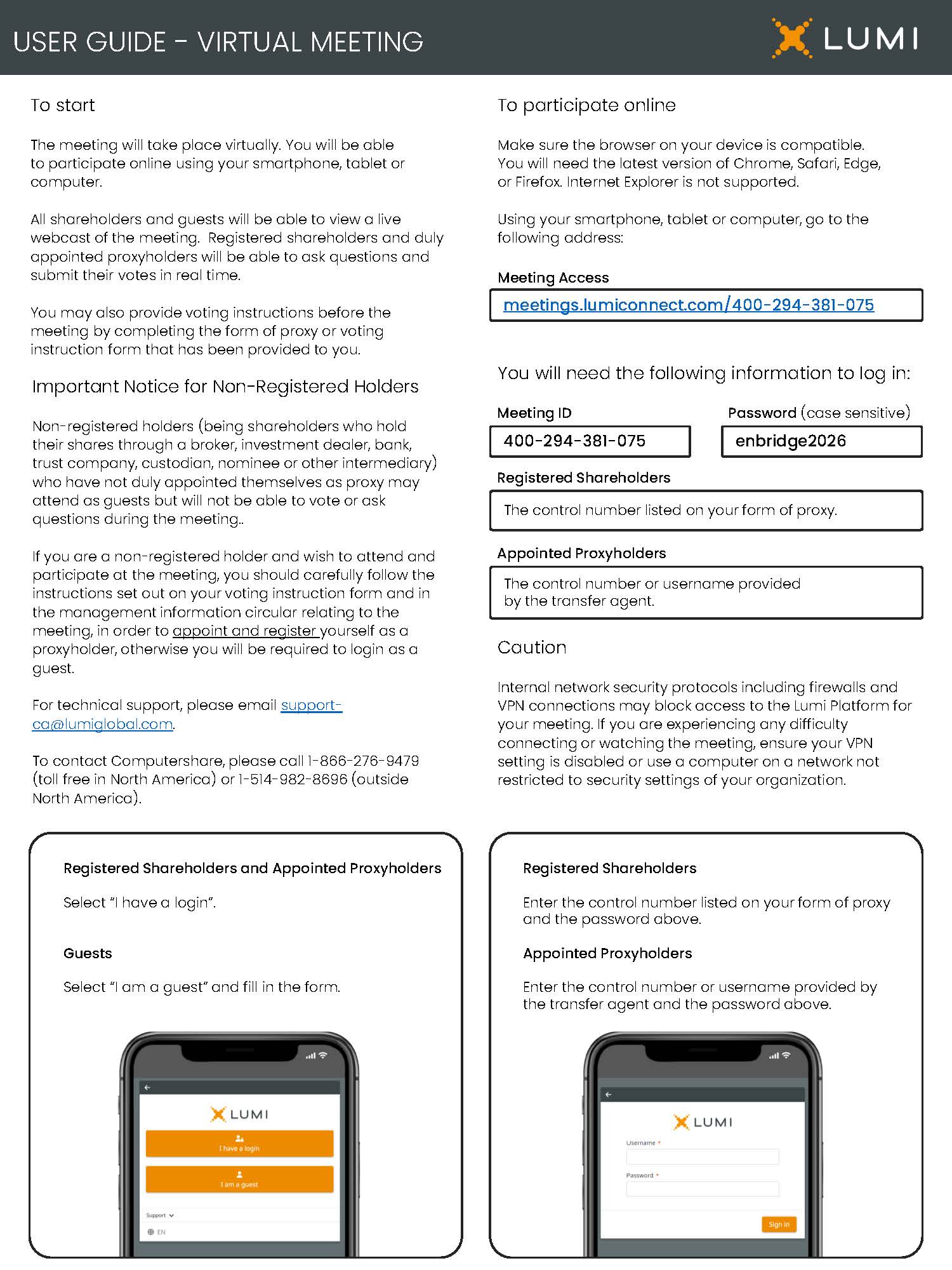
USER GUIDE - VIRTUAL MEETING lumi To start The meeting will take place virtually. You will be able to participate online using your smartphone, tablet or computer. All shareholders and guests will be able to view a live webcast of the meeting. Registered shareholders and duly appointed proxyholders will be able to ask questions and submit their votes in real time. You may also provide voting instructions before the meeting by completing the form of proxy or voting instruction form that has been provided to you. Important Notice for Non-Registered Holders Non-registered holders (being shareholders who hold their shares through a broker, investment dealer, bank, trust company, custodian, nominee or other intermediary) who have not duly appointed themselves as proxy may attend as guests but will not be able to vote or ask questions during the meeting.. If you are a non-registered holder and wish to attend and participate at the meeting, you should carefully follow the instructions set out on your voting instruction form and in the management information circular relating to the meeting, in order to appoint and register yourself as a proxyholder, otherwise you will be required to login as a guest. For technical support, please email supportca@lumiglobal.com. To contact Computershare, please call 1-866-276-9479 (toll free in North America) or 1-514-982-8696 (outside North America) Registered Shareholders and Appointed Proxyholders Select “I have a login”. Guests Select “I am a guest” and fill in the form. To participate online Make sure the browser on your device is compatible. You will need the latest version of Chrome, Safari, Edge, or Firefox. Internet Explorer is not supported. Using your smartphone, tablet or computer, go to the following address: Meeting Access meetings.lumiconnect.com/400-294-381-075 meetings.lumiconnect.com/400-294-381-075 Meeting ID Password (case sensitive) 400-294-381-075 enbridge2026 Registered Shareholders The control number listed on your form of proxy Appointed Proxyholders The control number or username provided by the transfer agent. Caution Internal network security protocols including firewalls and VPN connections may block access to the Lumi Platform for your meeting. If you are experiencing any difficulty connecting or watching the meeting, ensure your VPN setting is disabled or use a computer on a network not restricted to security settings of your organization Registered Shareholders Enter the control number listed on your form of proxy and the password above. Appointed Proxyholders Enter the control number or username provided by the transfer agent and the password above